
Docs Category
Code Review and Git Workflows
This section covers the workflows teams use most often in Critiq: interactive rebase, branch operations, commit composition, branch comparison, keyboard-driven navigation, and review flows for pull requests and stacked PRs.
If you are looking for a Git client that can compare branches without checkout, split a large working set into focused commits, or keep review context intact while you fix code, start here.
Interactive Rebase (Janitor Mode)
Critiq includes an Interactive Rebase workflow for cleaning up commit history before you share it.
Use it to reorder commits and choose actions like pick, reword,
squash, fixup, and drop.
Interactive Rebase currently runs in same-branch janitor mode: it rewrites commits that are already in your current branch ancestry. It does not move commits across unrelated branches.
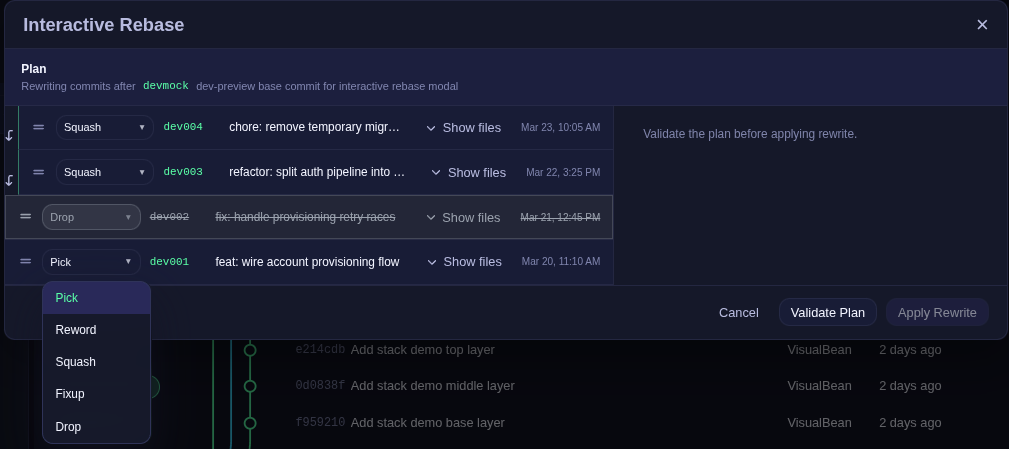
- In the commit graph, right-click the oldest commit you want to rewrite and choose Interactive Rebase.... Critiq includes that commit and all newer commits on the current branch in the plan.
- Validation checks the plan before apply, and Critiq creates a backup rewrite branch.
-
A backup branch is created before history changes (for example
critiq/rewrite/...) so you can recover or compare if needed. -
If rewritten commits already exist on upstream, pushing requires
--force-with-lease.
Branch Context Menu
Right-click any local branch in the branch dropdown to:
- Push - Push commits to remote (shows if branch is ahead)
- Pull - Pull commits from remote with fast-forward only (shows if branch is behind)
- Fetch - Fetch latest changes from remote without merging
File Context Menu
Right-click any file in the changes pane to:
- Stage/Unstage - Move files between staged and unstaged
- Line-level Stage/Unstage - Hover changed lines in diff view and use round +/- gutter buttons for single-line granularity
- Add to Scratchpad - Park file changes to restore later (Experimental)
- Discard Changes - Discard staged or unstaged changes (context-aware)
- Delete File - Delete untracked or newly added files
Commit Composer
Commit Composer helps you split a large working set into multiple focused commits without leaving Critiq.
- Open it from the Commit panel header using the Compose button.
- Composer currently loads staged changes as its source set, then lets you drag files or hunks into commit buckets.
- Drop a file/hunk onto Add Commit to create a new bucket and assign that change in one step.
- Buckets execute top-to-bottom, creating one git commit per bucket message.
- If an AI provider is configured, each bucket has a wand button to generate a commit summary from that bucket's selected changes using your selected commit message style.
Composer safety and staged-state restore
Before execution, Critiq snapshots your current staged index and attempts to restore it after the composer run completes.
- Working tree edits are not expected to be discarded by composer execution.
- If restore succeeds, your pre-existing staged selection is reinstated.
- In complex overlap scenarios (for example, staged + unstaged edits on the same file/region), restore can fail; in that case, some previously staged changes may end up unstaged.
- Commits already created by Composer are not automatically rolled back if a later step fails.
For highest safety, run Composer with a small batch and verify staged state after execution before continuing.
Session History
Session History shows the work that happened between commits. It is meant for the uncomfortable moment where the working tree is dirty, you have edited the same files several times, and the normal Git diff only shows the final result.
When you open a repository, Critiq treats the current working tree as the starting point for that session. From there, it records meaningful editing checkpoints so you can look back at how the current changes evolved before they became a commit.
- Repeated edits stay readable - if you keep working on the same file, Critiq keeps that as one evolving entry instead of flooding the list.
- Related files stay together - when several files change together, Critiq keeps that moment as a grouped snapshot.
- Existing work is not misreported - files that were already dirty when you opened the repository are treated as the starting point, not as newly added session work.
- Temporary by design - Session History is not a backup system, stash replacement, or commit history. It clears when the commit changes or the app session is reset.
Open it from the right sidebar. Click a snapshot to inspect the incremental diff for that moment.
File Tree Text Search
Open File Tree Text Search with your configured shortcut to search across the repository without leaving the sidebar. You can scope results to changed files only and use hunk markers to see whether each result line is inside a changed hunk.
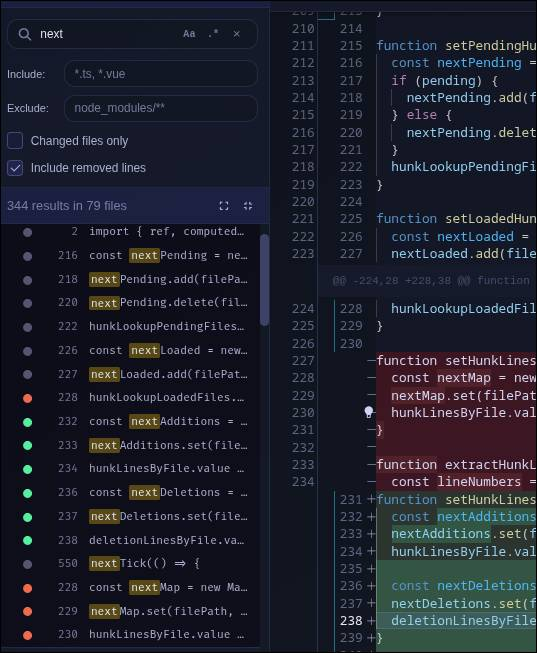
- Green dot - The matched line is inside a changed hunk.
- Red dot - The matched line was removed (only shown when "Include removed lines" is enabled).
- Gray dot - The file is changed, but that matched line is outside changed hunks.
- No dot - The result is from a file outside the current changeset, so hunk status does not apply.
Commit Profiles
Critiq supports reusable commit identities and repository-specific profile selection so you can use different name/email/signing setups across repositories.
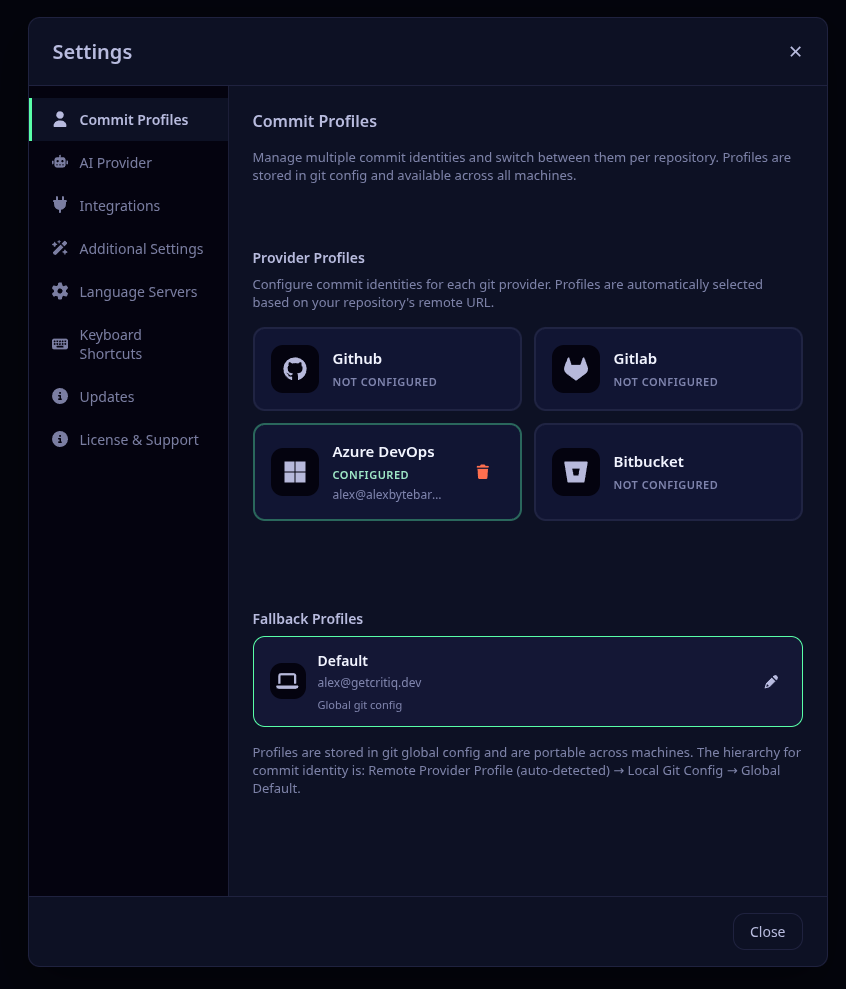
- Open Settings → Commit Profiles.
-
Create one or more named profiles with the commit identity you want (
user.name,user.email, optional signing settings). - Optionally set provider defaults in each profile (for example, a default profile for GitHub repos).
- Pin specific repositories to a profile from the repository picker gear icon (Repository Settings → Commit profile).
- You can also click your identity text in the status bar to quickly switch the current repository profile.
Profile assignment is done in Repository Settings or from the status bar identity menu.
Fallback order for commit identity is: pinned repository profile → local git config → provider default profile → global Critiq profile → global git config.
Visual Image Diff Preview
Critiq supports first-class visual image diffing in Preview mode for working tree review, commit file review, and branch/PR comparisons.
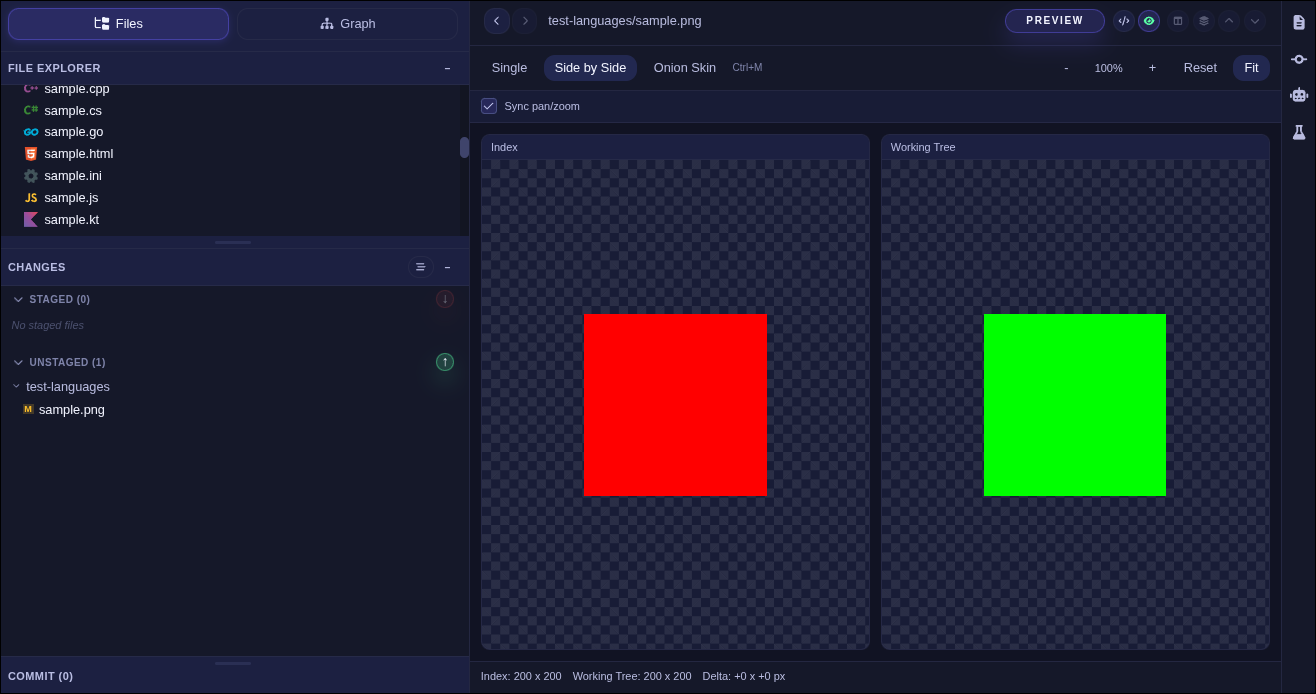
- Single mode - View one side only (ideal for unchanged files or file explorer image opens).
- Side-by-side mode - Compare before/after images with synced pan/zoom.
- Onion-skin mode - Overlay before/after with adjustable opacity for subtle visual shifts.
- Added/Deleted states - Critiq clearly labels image additions and removals when one side is missing.
In onion-skin mode, use arrow keys for fast opacity tuning while reviewing.
Markdown Preview
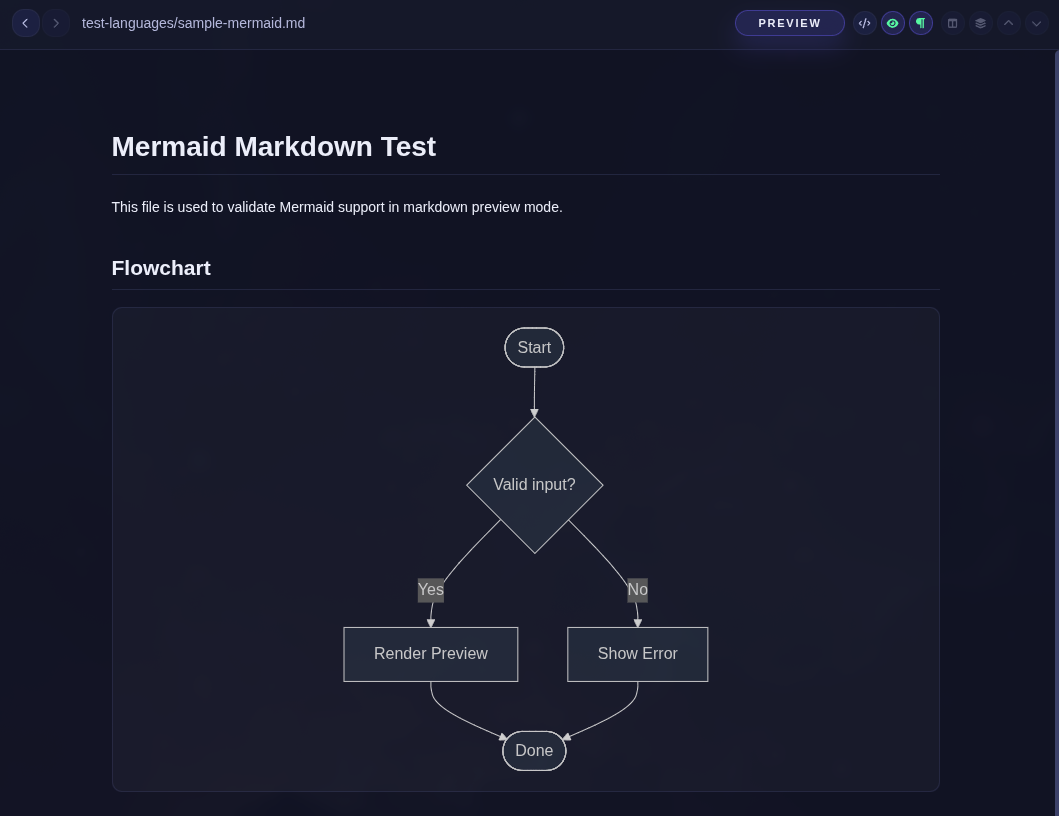
Full support for markdown in Preview mode, across all Critiq modes. With mermaid diagram rendering.
Diff View Modes
Click the view mode button in the diff toolbar to toggle between inline and split view. Right-click it to choose from all available modes and options:
- Inline view - Added and removed lines shown in a single column.
- Split view - Before and after shown side by side.
- Inline wrapped / Split wrapped - Same as above with line wrapping enabled.
- Hunks only - Collapses unchanged context so only the changed hunks are visible. Useful for large files with scattered changes. This setting is persisted across sessions.
Diff Header Display Options
The old single Show/Hide hidden characters button is now a paragraph-icon dropdown in the diff header with multiple toggles.
- Ignore whitespace - Computes diffs using whitespace-insensitive matching, which helps remove indentation/spacing-only noise.
- Show hidden characters - Reveals spaces, tabs, and other hidden characters inline.
If a file only contains whitespace changes while Ignore whitespace is enabled, Critiq shows a clear empty-state message instead of rendering noisy diff output.
Appearance and Themes
Open Settings → Additional Settings → Appearance to change Critiq's theme. The UI Theme controls the app chrome, sidebars, panels, and navigation, while the Editor Theme controls Monaco syntax highlighting in code and diff views. You can keep them matched or set them independently.
Display Language
Open Settings → Additional Settings → Appearance and use the Language dropdown to choose Critiq's interface language. Critiq supports English, Spanish, and French.
Keyboard Shortcuts
- Ctrl/Cmd + P - Toggle quick file search
- Ctrl/Cmd + Shift + F - Open text search
- Ctrl/Cmd + H - Previous file (navigate file history in working changes)
- Ctrl/Cmd + L - Next file (navigate file history in working changes)
- Ctrl/Cmd + J - Next hunk
- Ctrl/Cmd + K - Previous hunk
- Ctrl/Cmd + Shift + J - Next file (changes list, or file explorer when viewing a file)
- Ctrl/Cmd + Shift + K - Previous file (changes list, or file explorer when viewing a file)
- Ctrl/Cmd + S - Stage/unstage current hunk (or save file in edit mode)
- Alt + S - Stage/unstage current line
- Ctrl/Cmd + Shift + S - Stage/unstage entire file
- Ctrl/Cmd + E - Toggle edit mode
- Ctrl/Cmd + Shift + R - Toggle file reviewed status (PR mode)
- Ctrl/Cmd + M - Cycle image diff mode (single, side-by-side, onion skin)
- Ctrl/Cmd + B - Blink overlay in onion-skin mode
- Arrow Left / Arrow Right - Decrease/increase onion-skin opacity (Shift for larger steps)
Note: All keyboard shortcuts can be customized in Settings.
Command Palette Modes
Open the command palette with Ctrl/Cmd + P. You can search normally, or use a mode prefix to narrow behavior.
- Default (no prefix): Search changed files, all files, and symbols.
-
:Line jump mode. Type a line number and press Enter to jump in the currently open file. -
c:Class/type symbol filter. -
m:Method/function symbol filter. -
v:Variable/property/field symbol filter. -
>Command mode. Use it for Git actions (stage, unstage, discard, commit, push, pull, fetch, stash) and guided commands such as>modeand>open. Use>settingsor>setto open Settings. -
>settings/>setOpen Settings. -
>modeGuided mode switcher for working, branch compare, and pull request review modes. -
>openOpen a previously accessed repository (including saved workspaces) by name.
Enter these by typing the prefix or command directly in the palette input.
Scratchpad
Scratchpad lets you park file or hunk changes, then restore them later without losing context.
In Scratchpad diff view, you can also restore individual changed lines back into your unstaged working tree with the same green + gutter control.
How this differs from git stash:
- Granular by design - Scratchpad supports parking and restoring at file or hunk level.
- Always visible in UI - Parked entries stay in the Changes panel instead of a stack hidden behind CLI commands.
- Selective workflow - Move only the noise out of your current commit, without stashing everything.
Graph Lane Cap
In Settings → Additional Settings → Git Operations, use History graph lane cap to control how many graph lanes are rendered at once in the commit graph. A lower value keeps the graph compact and faster in very large repositories, while a higher value shows more parallel branches.
When the graph exceeds the cap, the last lane is reserved as an overflow lane so you still see the full shape of the history.