
Everyday Git
On this page
Opening repositories, branches and worktrees, committing, history, and rebasing. Monorepo workspaces and submodules are covered at the end.
Opening Repositories
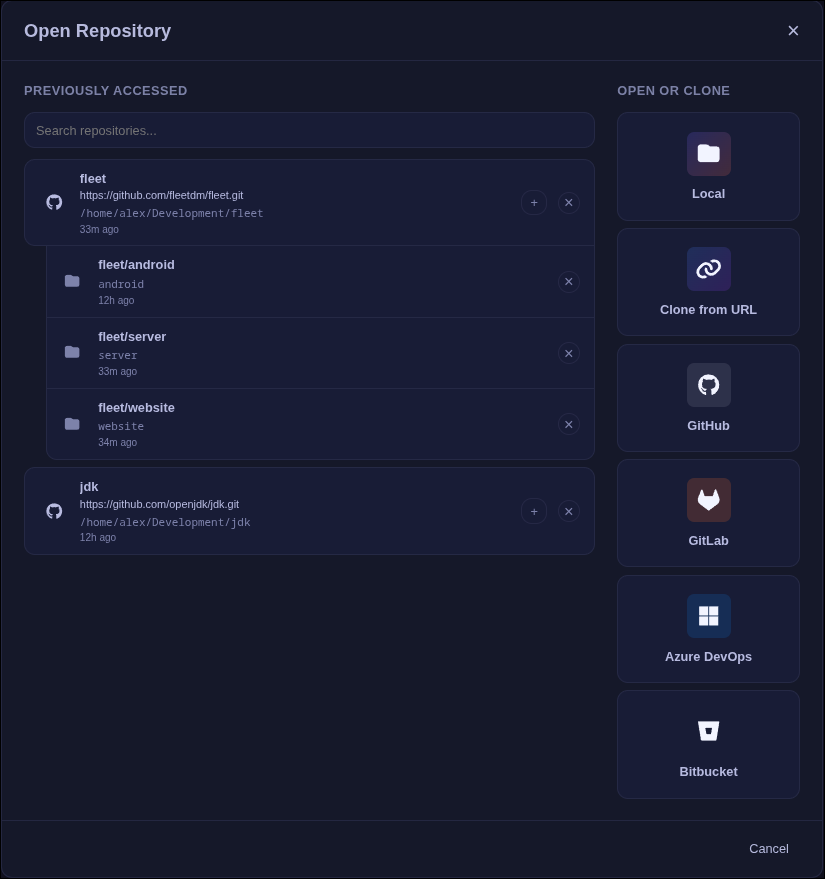
Click the repository name in the header to open the Open Repository dialog. It lists previously opened repositories with their remote and path, and lets you open a local folder, clone from a URL, or clone from a connected provider.
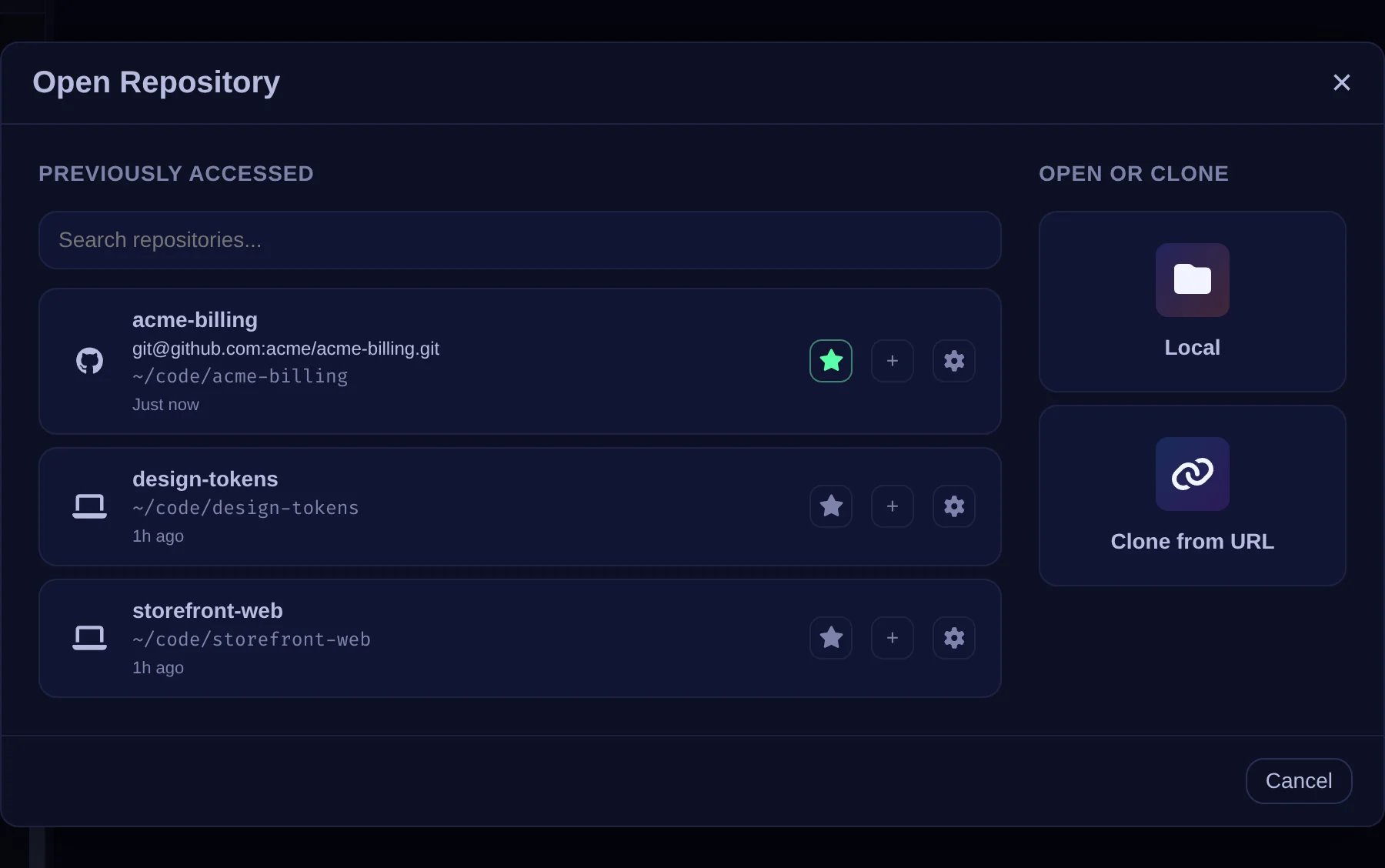
- Favorites - Click the star next to a repository to keep it at the top of the list. Other repositories are sorted by when you last opened them.
- Search - Type in the search box to filter the list by name.
- Repository Settings - The gear icon opens settings for that repository: the commit profile to use (see Commit Profiles), the Origin remote URL, and Remove from history.
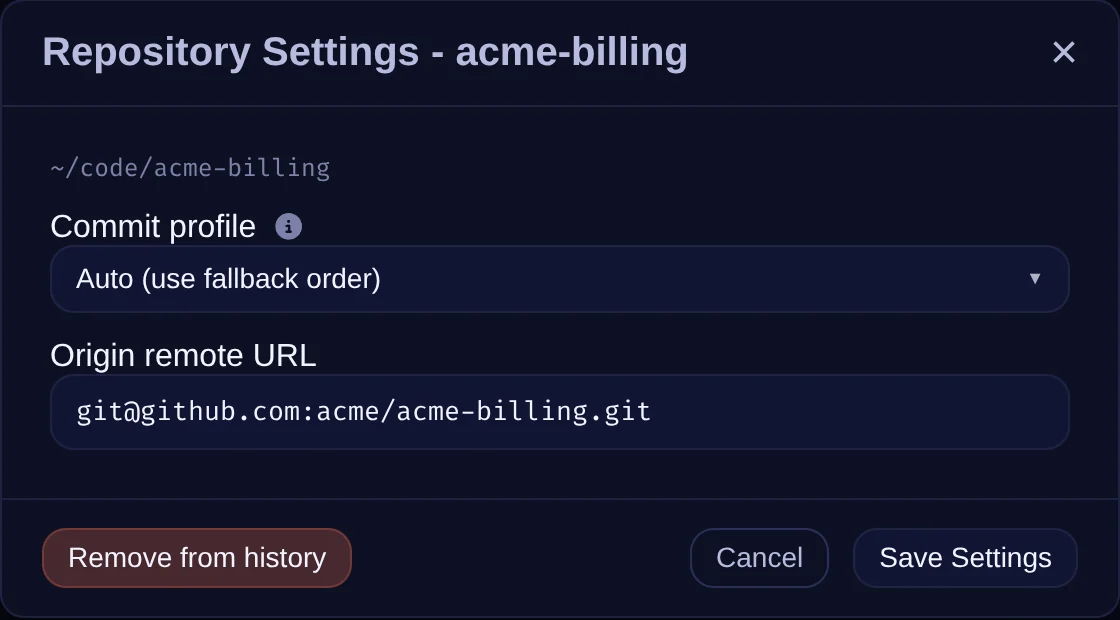
Changing Origin remote URL updates the repository's origin remote,
the same as git remote set-url origin <url>. Use it when a repository moves,
or to switch between HTTPS and SSH.
Branch Context Menu
Right-click any local branch in the branch dropdown to:
- Push - Push commits to remote (shows if branch is ahead)
- Pull - Pull commits from remote with fast-forward only (shows if branch is behind)
- Fetch - Fetch latest changes from remote without merging
When a push is rejected because the remote has commits you do not have, Critiq offers a force push. If the branch is the one you have checked out, the dialog also offers Pull then Push: it pulls the remote commits first and then pushes normally, so nothing on the remote is overwritten.
Worktrees
Worktrees let you keep multiple checkouts of a repository open at once. A folder is not permanently bound to a branch: you can switch branches in a checkout, as long as that branch is not already checked out elsewhere.
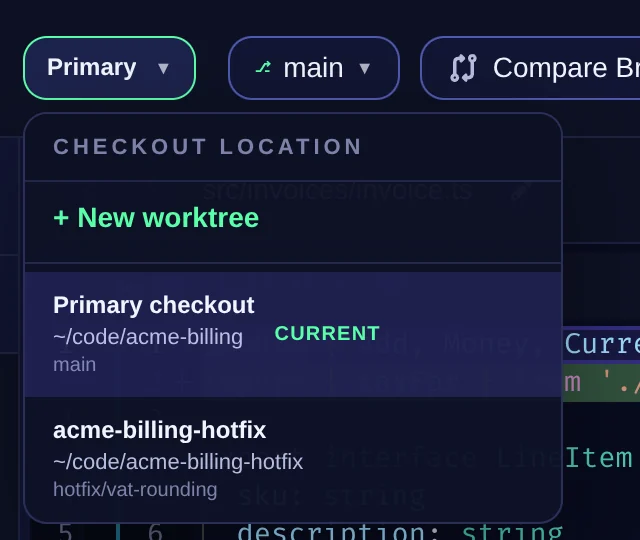
- Use the header's Repo → Checkout → Branch controls. Checkout chooses the primary repository directory or a linked worktree, independently of its branch. Branch changes branches in the selected checkout; branches checked out elsewhere appear ghosted. The WT badge marks branches in linked worktrees, not the primary checkout.
- Choose Checkout → New worktree to create a worktree for a new branch or an existing branch that is not checked out elsewhere. Edit the folder name and review the destination before creating it.
-
Default location: With Settings → Additional Settings → Git Operations → Worktree base directory
left blank, Critiq creates a
<repo-name>-worktreesdirectory beside the primary repository, then puts each worktree in a subfolder named in the creation dialog. For example, a repository at/projects/my-repowith folder namefeature-logincreates/projects/my-repo-worktrees/feature-login. This is a persistent location, not an OS temporary folder. Enter or browse to an absolute base directory in Settings to use a different location; the creation dialog previews the resulting path before you confirm. - To remove one, right-click its linked checkout in the Checkout menu and choose Delete worktree. The confirmation lets you keep the branch or delete it too. Critiq cannot remove the current or primary checkout, and deletion is blocked while tracked or non-ignored untracked changes remain. Ignored files, such as build output, are deleted with the worktree.
- To merge changes from a source worktree into a target branch, first open the target checkout, then merge the source branch into it. Committed changes are shared across worktrees; uncommitted changes are not.
File Context Menu
Right-click any file in the changes pane to:
- Stage/Unstage - Move files between staged and unstaged
- Line-level Stage/Unstage - Hover changed lines in diff view and use round +/- gutter buttons for single-line granularity
- Add to Scratchpad - Park file changes to restore later (Experimental)
- Discard Changes - Discard staged or unstaged changes (context-aware)
- Delete File - Delete untracked or newly added files
-
Add to .gitignore - Add the file, or a whole folder when you right-click a
folder, to the repository's
.gitignore
Commit Composer
Commit Composer helps you split a large working set into multiple focused commits without leaving Critiq.
- Open it from the Commit panel header using the Compose button.
- Composer currently loads staged changes as its source set, then lets you drag files or hunks into commit buckets.
- Drop a file/hunk onto Add Commit to create a new bucket and assign that change in one step.
- Buckets execute top-to-bottom, creating one git commit per bucket message.
- If an AI provider is configured, each bucket has a wand button to generate a commit summary from that bucket's selected changes using your selected commit message style.
Suggest commits with AI
Suggest commits, in the Commit plan header, asks your AI provider to group all changes in the composer into commits, each with a message. It works the same when you recompose an existing commit or split a pull request into stacked branches; there, each suggested commit becomes one branch of the stack.
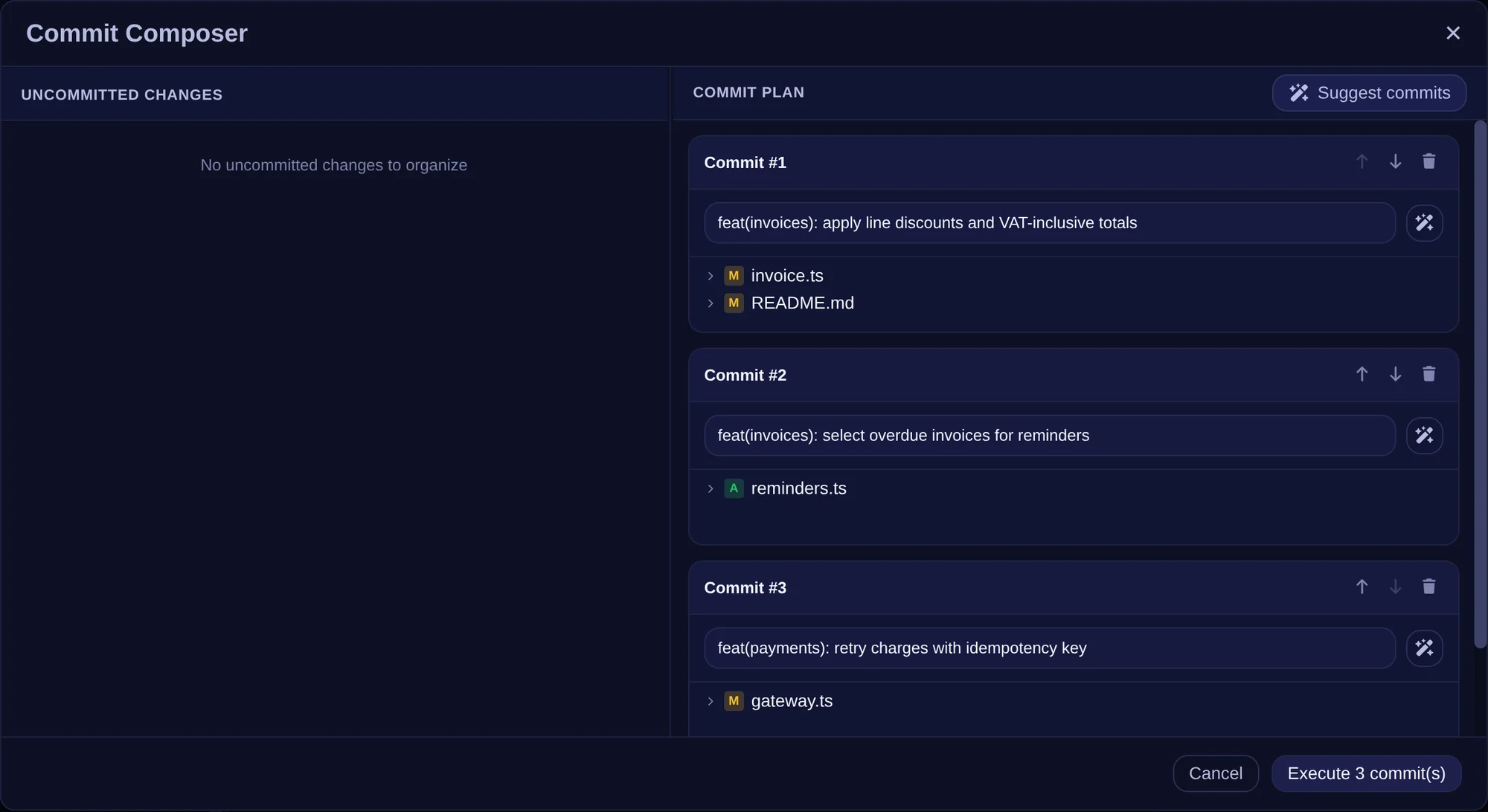
- Changes are grouped by intent: a change stays together with what exists only to support it, such as a new function and its callers, or a setting and the code that reads it. Commits are ordered so later ones build on earlier ones.
- Messages follow your commit message style and the style of the repository's recent commits.
- The suggestion replaces the current commit plan. If you have already arranged commits, Critiq asks first. Nothing is committed until you run the plan, so rearrange freely before that.
- While a suggestion runs, the button changes to Cancel; press it to stop.
- Changes the model does not place stay unassigned for you to place, and the notification says how many.
-
Credential files such as
.envand private keys are never sent to the model; they stay unassigned. Lockfiles and generated files are sent as paths only. - Claude Code, Codex, and OpenCode can read the repository to check how changed code is used before grouping it, and each suggestion runs in a new session.
- Very large change sets are refused rather than sent in part; place some changes by hand first.
- Suggest commits needs a hosted provider, Claude Code, Codex, OpenCode, or a custom endpoint. It is not available with built-in local models (see Local Models).
Recompose commits and pull requests
Recompose opens the same composer for work that is already committed, so you can split it after the fact.
-
Recompose a commit - In the commit graph, right-click a commit and choose
Recompose Commit.... The commit's changes load as the source set; arrange them
into as many commits as you like, then choose Recompose into N commit(s). The
new commits replace the original and any later commits are rebased on top. Critiq creates a
backup branch first, and can auto-stash uncommitted changes. As with any history rewrite,
pushing an already-pushed branch needs
--force-with-lease. - Recompose a pull request - While reviewing a pull request, click Recompose in the review header. Each commit in the plan becomes a local branch, stacked on the previous one, ready to push as a stack of smaller pull requests (see Stacked PRs).
- Suggest commits works here too.
Composer safety and staged-state restore
Before execution, Critiq snapshots your current staged index and attempts to restore it after the composer run completes.
- Working tree edits are not expected to be discarded by composer execution.
- If restore succeeds, your pre-existing staged selection is reinstated.
- In complex overlap scenarios (for example, staged + unstaged edits on the same file/region), restore can fail; in that case, some previously staged changes may end up unstaged.
- Commits already created by Composer are not automatically rolled back if a later step fails.
For highest safety, run Composer with a small batch and verify staged state after execution before continuing.
Commit Profiles
Critiq supports reusable commit identities and repository-specific profile selection so you can use different name/email/signing setups across repositories.
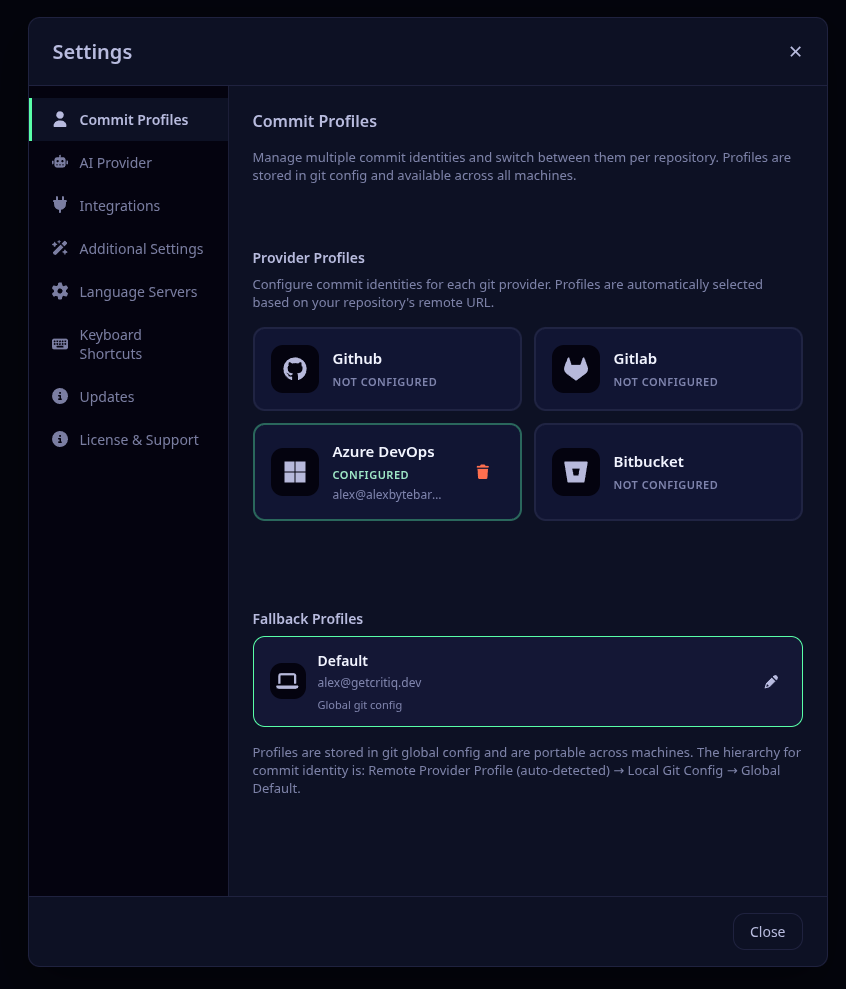
- Open Settings → Commit Profiles.
-
Create one or more named profiles with the commit identity you want (
user.name,user.email, optional signing settings). - Optionally set provider defaults in each profile (for example, a default profile for GitHub repos).
- Pin specific repositories to a profile from the repository picker gear icon (Repository Settings → Commit profile).
- You can also click your identity text in the status bar to quickly switch the current repository profile.
Profile assignment is done in Repository Settings or from the status bar identity menu.
Fallback order for commit identity is: pinned repository profile → local git config → provider default profile → global Critiq profile → global git config.
Commit Graph Actions
Switch the left sidebar to Graph to see branches and history. Right-click any commit for the actions that apply to it.
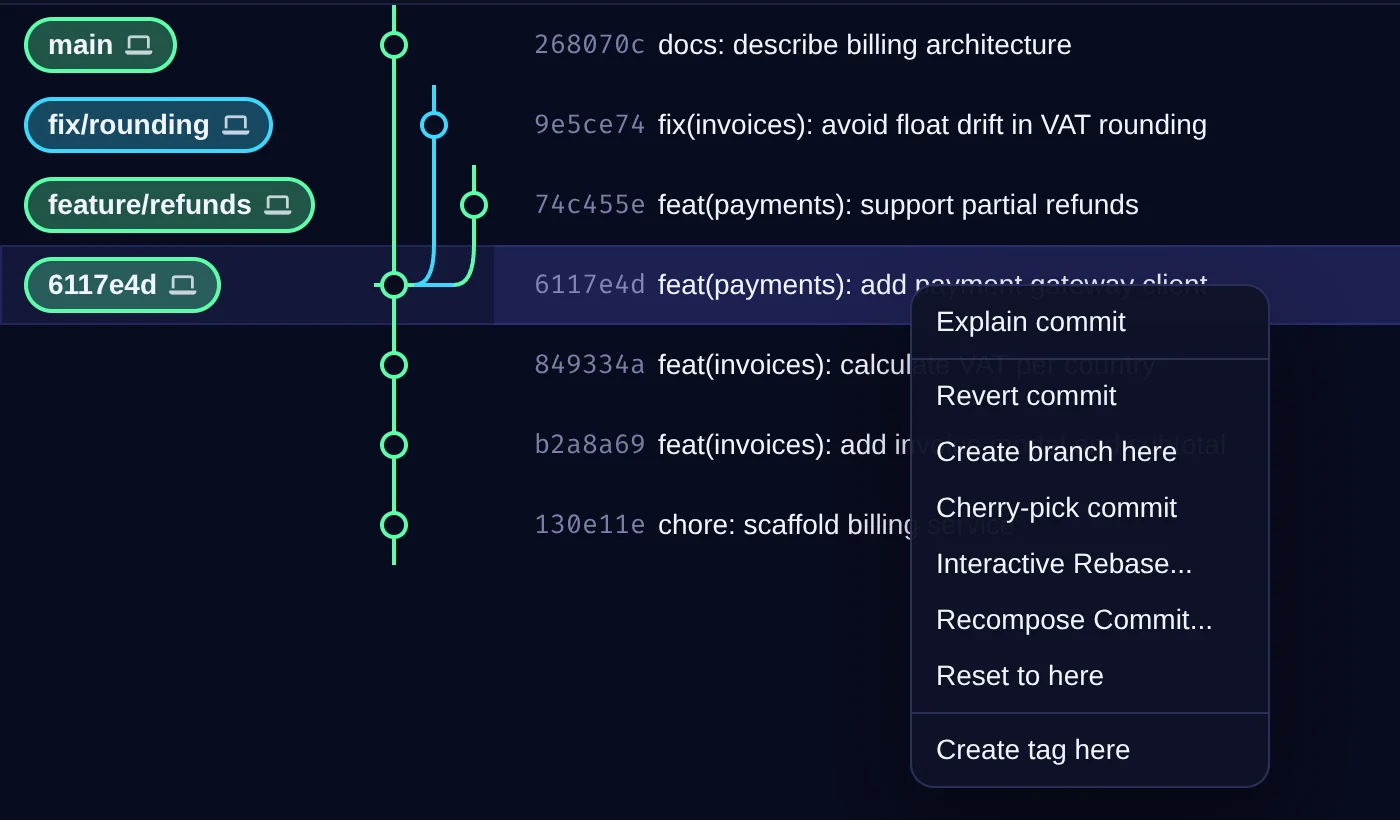
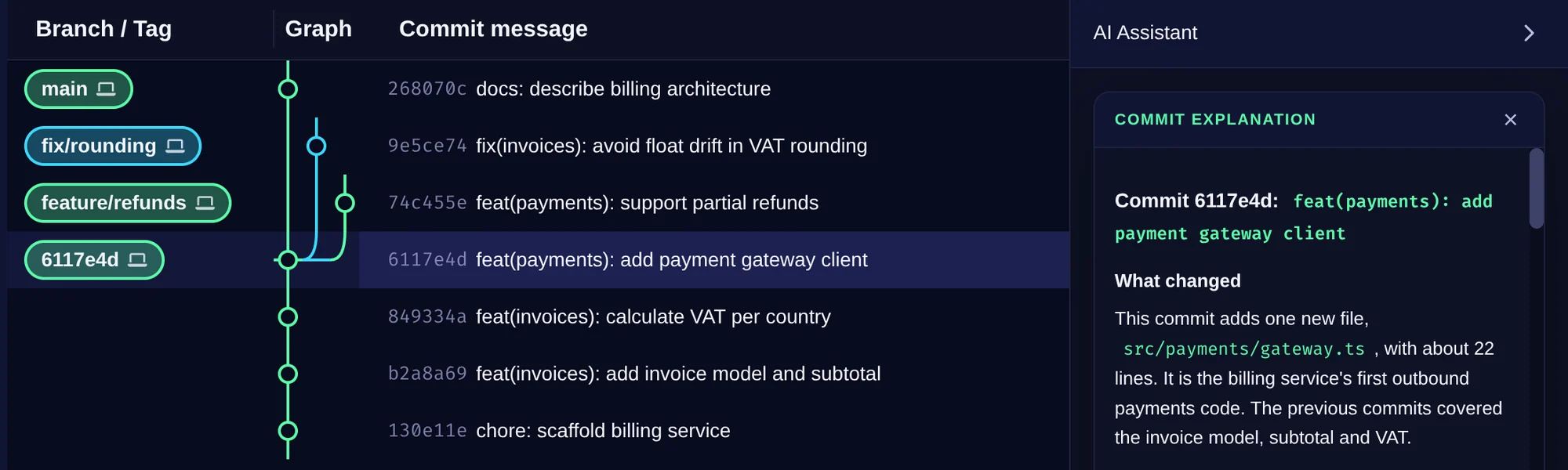
- Explain commit - Ask your AI provider to explain what the commit changes and why. The explanation appears in the AI Assistant panel on the right. Shown when an AI provider is selected.
- Revert commit - Create a new commit that undoes this one.
- Create branch here / Create tag here - At this commit.
- Cherry-pick commit - Apply this commit onto the current branch.
- Interactive Rebase... - Rewrite history from this commit (see Interactive Rebase).
- Recompose Commit... - Split this commit into several (see Recompose).
- Reset to here - Move the current branch to this commit.
Graph Lane Cap
In Settings → Additional Settings → Git Operations, use History graph lane cap to control how many graph lanes are rendered at once in the commit graph. A lower value keeps the graph compact and faster in very large repositories, while a higher value shows more parallel branches.
When the graph exceeds the cap, the last lane is reserved as an overflow lane so you still see the full shape of the history.
Session History
Session History shows the work that happened between commits. It is meant for the uncomfortable moment where the working tree is dirty, you have edited the same files several times, and the normal Git diff only shows the final result.
When you open a repository, Critiq treats the current working tree as the starting point for that session. From there, it records meaningful editing checkpoints so you can look back at how the current changes evolved before they became a commit.
- Repeated edits stay readable - if you keep working on the same file, Critiq keeps that as one evolving entry instead of flooding the list.
- Related files stay together - when several files change together, Critiq keeps that moment as a grouped snapshot.
- Existing work is not misreported - files that were already dirty when you opened the repository are treated as the starting point, not as newly added session work.
- Temporary by design - Session History is not a backup system, stash replacement, or commit history. It clears when the commit changes or the app session is reset.
Open it from the right sidebar. Click a snapshot to inspect the incremental diff for that moment.
Scratchpad
Scratchpad lets you park file or hunk changes, then restore them later without losing context.
In Scratchpad diff view, you can also restore individual changed lines back into your unstaged working tree with the same green + gutter control.
How this differs from git stash:
- Granular by design - Scratchpad supports parking and restoring at file or hunk level.
- Always visible in UI - Parked entries stay in the Changes panel instead of a stack hidden behind CLI commands.
- Selective workflow - Move only the noise out of your current commit, without stashing everything.
Interactive Rebase (Janitor Mode)
Critiq includes an Interactive Rebase workflow for cleaning up commit history before you share it.
Use it to reorder commits and choose actions like pick, reword,
squash, fixup, and drop.
Interactive Rebase currently runs in same-branch janitor mode: it rewrites commits that are already in your current branch ancestry. It does not move commits across unrelated branches.
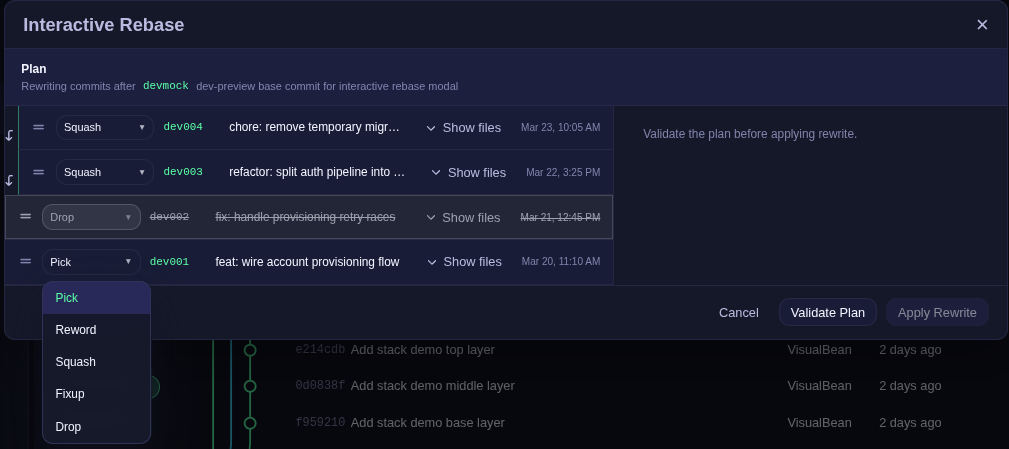
- In the commit graph, right-click the oldest commit you want to rewrite and choose Interactive Rebase.... Critiq includes that commit and all newer commits on the current branch in the plan.
- Validation checks the plan before apply, and Critiq creates a backup rewrite branch.
-
A backup branch is created before history changes (for example
critiq/rewrite/...) so you can recover or compare if needed. -
If rewritten commits already exist on upstream, pushing requires
--force-with-lease.
Monorepo Workspaces
Critiq supports monorepos by letting you open a focused workspace inside a larger repository. Workspaces keep the file explorer scoped to a subfolder while still letting you review changes across the entire repo.
Adding a Workspace
- Open the repository selection window and add the repository root.
- In the repository picker, click the "+" button next to the repo to add a workspace.
- Select the workspace folder (for example:
packages/frontend). - Optionally set a display name for the workspace.
Workspace Behavior
- The file explorer shows only the workspace subfolder.
- Branch comparisons and PR reviews list all changed files, grouped by workspace vs outside the workspace.
- The Changes list and commit file lists keep the same workspace/outside grouping.
- Language servers and symbol indexing run from the workspace root for accurate monorepo intelligence.
- Conflict resolution covers the entire repository.
Submodules
Submodule updates are shown with an orange S status instead of a line-by-line diff. Critiq shows a list of commits between the old and new submodule SHAs so you can review the actual submodule history that changed.
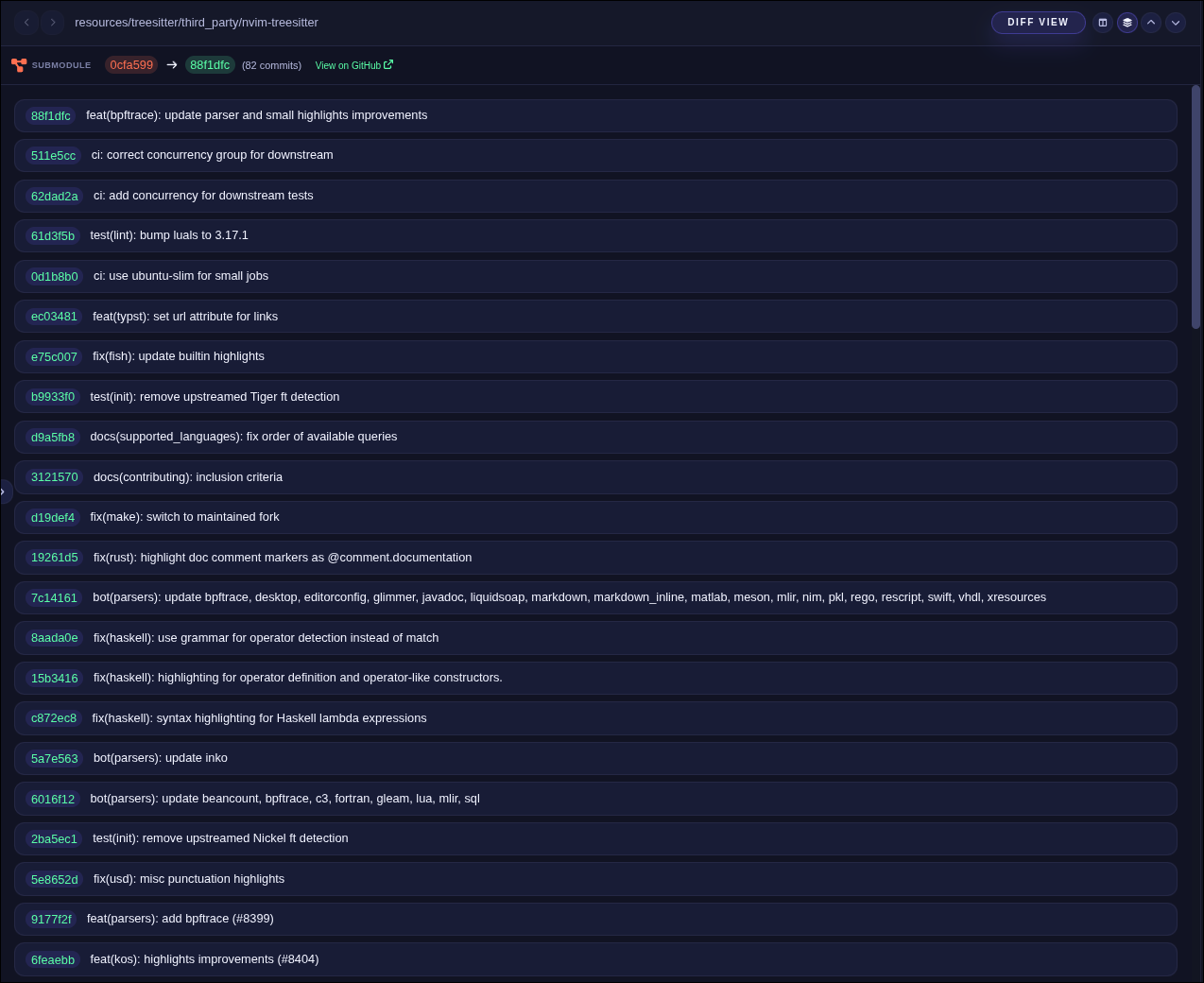
- Right-click a submodule entry in the Changes list or commit files and choose View Submodule Diff.
- This opens the submodule SHA diff inside Critiq, so you can review the submodule changes directly.